

When you first hear about OpenClaw, it sounds like magic. An AI employee that can run its own computer, use your apps, and work while you sleep. But the moment you try to actually learn it, you hit a wall of unfamiliar concepts: gateway, soul.md, heartbeat, skills, MCP servers, context engine. It is a lot.
This guide breaks down every core OpenClaw concept in plain English. No jargon. No assumptions. Just the shortcut you wish someone gave you on day one.
What Is OpenClaw?
You already know tools like ChatGPT and Claude. You type something in, they reply, and that is it. They talk. They cannot manage your calendar. They cannot post to your social media accounts. They cannot manage an email inbox the way a human assistant would.
OpenClaw can do all three. And that is just the start.
Think of it as upgrading from texting a smart friend to actually hiring a full-time personal assistant. The reason OpenClaw can do this is that it has its own dedicated computer. It can browse the web, manage files, and connect to the applications you use every day.
If ChatGPT is a chatbot you converse with, OpenClaw is an employee who never clocks out.
The Origin Story
OpenClaw was created by Austrian developer Peter Steinberger, the founder of PSPDFKit. It was originally published in November 2025 under the name Clawdbot. After a trademark complaint from Anthropic, it was briefly renamed to Moltbot, then settled on OpenClaw three days later.
In February 2026, Steinberger announced he was joining OpenAI. The project moved to an independent open-source foundation with OpenAI as a financial sponsor. As of March 2026, OpenClaw has over 320,000 GitHub stars, 61,400 forks, and 600+ contributors, making it one of the fastest-growing open-source projects in history.
Because it is fully open source under the MIT license, no company can shut it down, pull it, or lock it behind a paywall.
How to Install OpenClaw
Getting started is surprisingly simple. Go to openclaw.ai and grab the one-liner command for your operating system.
On Mac or Linux:
On Windows:
Paste the command into your terminal, hit enter, and it runs through the installation process. OpenClaw runs as a background process on whatever computer you install it to. It can create, edit, use, and even delete files on that machine.
The Dedicated Machine Rule
Here is an important best practice: treat OpenClaw like a new employee. Instead of giving it access to your personal laptop, get it its own workspace. This could be:
- An old computer you have lying around
- A Mac Mini bought specifically for this purpose
- A VPS (Virtual Private Server) from providers like Hetzner, DigitalOcean, or Hostinger for a few dollars per month
That way, your agent is always online even when your home computer is off, and whatever files it creates live within its own isolated environment.
API Key vs OAuth: How You Connect to AI Models
When you install OpenClaw, you choose between two setup methods for connecting to AI models. This decision has real cost implications.
API Key (Pay Per Use)
You pay for every token your agent consumes. There is no ceiling on monthly costs. This method is more advanced and primarily geared toward developers who want granular control. Anthropic API key authentication is the recommended path if you go this route. It supports key rotation for load distribution across multiple keys.
OAuth (Flat Monthly Fee)
You subscribe to a service like ChatGPT Plus at $20 per month and pay that fixed amount regardless of how many tokens you use. If you are new to the space, OAuth is generally the simpler choice.
The catch: since OAuth is subsidized pricing, model providers have varying stances on whether it is acceptable to use with OpenClaw.
| Provider | OAuth Status | Recommendation |
|---|---|---|
| OpenAI | Officially allowed | Best option for beginners |
| Anthropic | Gray area, no official statement | Some users report blocks |
| Multiple documented bans | Most risky, avoid for now |
If you are using OpenClaw for the first time, OpenAI's OAuth is currently the safest bet.
The Agentic Loop: What Makes an Agent Different
This concept separates an agent from a chatbot. It is the foundation that everything else in OpenClaw builds upon.
When you talk to ChatGPT in a browser, the flow is simple: you send a message, it sends a reply, done. One turn.
An agent works in a loop. You give it a task, and it figures out the steps on its own. It calls a tool, reads the result, decides what to do next, calls another tool, and keeps going until the job is done. All in one turn, without you doing anything.
Real example: You ask it to fix a bug. It reads the file, finds the error, edits the code, runs the test, sees it fail, reads the error message, tries a different fix, and keeps iterating until the test passes. You asked one question and it took six actions.
Every concept in this guide builds on this agentic loop. Memory, skills, heartbeat, they all exist to feed and improve this loop.
The Gateway: Your AI's Front Desk
Once OpenClaw is installed, where does it actually live? It runs as a background process on your machine. This engine is called the gateway.
Think of the gateway as a receptionist at a front desk. When you message OpenClaw through WhatsApp, Telegram, or Slack, the gateway figures out which conversation the message belongs to, loads the relevant context, and passes it to the AI model underneath. It binds to port 18789 by default and serves both a web dashboard and a WebChat interface.
Every OpenClaw install also gives you a web interface you can open in your browser. If you cannot find it, just ask your OpenClaw agent to send you the link.
Chat Channels: Your Agent's Phone Lines
The gateway handles everything internally, but how does OpenClaw actually reach you? Through chat channels.
Channels are like phone lines plugged into a switchboard. Each one connects your OpenClaw to a different messaging platform: WhatsApp, Telegram, Discord, Slack, iMessage, Signal, Microsoft Teams, Google Chat, and 20+ more.
You set them up once, and from that point on, you message your AI assistant the same way you would message a coworker. On mobile with an idea? Just text your OpenClaw agent via Telegram. It routes through the gateway and comes back through the same channel.
The core idea: your agent has one brain but many ears and many mouths.
The Workspace: Your Agent's Home Base
When OpenClaw starts up, it needs a home base. Somewhere to keep its instructions, its memory, and its configuration. That place is called the workspace.
The workspace is literally just a folder on the machine you installed OpenClaw on. By default, it lives at ~/.openclaw/workspace, but this can vary depending on when you installed it. The easiest way to find yours is to ask your agent.
Here is the important part: none of this is code. You can open any of these files as a text document and read them like a book. It is all written in plain English. These markdown files are the "source code" that sits inside your AI agent's brain.
The Seven Core Files
OpenClaw follows a workspace-first philosophy where a set of markdown files define everything about your agent. These files are automatically injected into the agent's context at startup. Let's walk through each one.
1. Soul.md: Your Agent's Personality
If you think of AI agents as digital employees, then personality matters. Maybe you want your agent to be formal. Maybe casual. Maybe blunt. Soul.md is where you define that personality.
This file contains guidelines for how the agent writes, communicates, and presents itself. You do not need to write it yourself. Your OpenClaw agent generates an initial version, and you refine it together over time as you work with the agent day by day.
You can preview it in the gateway web interface under Agents, then select your agent and go to Files.
2. Identity.md: Name and Vibe
This file is very short. It stores the agent's name, its vibe, and the emoji it consistently uses. Think of it as the agent's business card.
3. Agents.md: The Operating Manual
If soul.md defines who the agent is, agents.md defines how it works. This is arguably the most important file in your entire system.
Agents.md is your operating manual: rules, priorities, and boundaries that your agent follows every single time. For example:
- Always check the calendar before scheduling anything
- Never send a message without express approval
- Never publish content without confirmation
This file is something you and your agent improve over time. A good practice is to include a daily self-improvement loop where, at the end of each work session, the agent reflects on what it learned and proposes updates to its core files.
4. User.md: Your Personal Profile
This file tells the agent who it is working for. Your name, your time zone, how you like to be addressed, what projects you are working on, and your preferences.
One practical tip: if you use voice transcription a lot, add a note about it in user.md. This helps the agent understand what you are saying despite transcription errors, especially on mobile.
User.md makes every interaction feel personal from the very first message.
5. Tools.md: Practical Sticky Notes
This file is your agent's notebook about how to use the specific tools in your setup. Think of it as sticky notes on an employee's monitor.
These are not official documentation, just the practical stuff that makes things work in your world. Examples include which text-to-speech provider is configured, how to connect to specific apps, and known fixes so the same problem does not trip the agent up twice.
6. Heartbeat.md: The Periodic Checklist
We will cover this in detail in the heartbeat section below, but heartbeat.md is the configuration file that tells your agent what to check during each periodic wake-up cycle.
7. Bootstrap.md: First-Run Instructions
This file contains initialization instructions that run only the first time the agent starts up. Think of it as the onboarding packet for your new hire.
Memory: How OpenClaw Remembers
Most AI tools forget everything between conversations. When you close the chat, that knowledge is gone. OpenClaw works around this with a persistent memory structure stored as plain markdown files on your machine.
Daily Notes
Files stored in your workspace named by date. They capture what happened each day: conversations, decisions, tasks. It is basically a work diary your digital employee maintains.
Memory.md: Long-Term Brain
A curated file where the agent saves the important stuff: preferences, key decisions, recurring facts. It helps the agent so it never has to ask you twice.
When a conversation gets really long and the context is about to overflow, OpenClaw automatically saves what matters into memory.md before older messages get compressed. This happens silently in the background.
The more you use OpenClaw, the more it remembers. And because everything is stored as local markdown files, your data is fully private and version-controllable.
The Heartbeat: Proactive Awareness
Most AI tools just sit there waiting for you to talk to them. The heartbeat is what makes OpenClaw proactive.
It is a periodic check. By default, every 30 minutes, the gateway wakes the agent up and asks it if anything needs attention. The agent reads heartbeat.md, which contains a checklist of things to monitor, and decides whether to tell you something or take action.
Examples of what you can put in the heartbeat checklist:
- Check if there are meetings in the next hour
- Look for urgent emails
- Verify that a deployment finished successfully
By default, heartbeat.md starts empty for new agents. This is intentional because the heartbeat runs every 30 minutes and a long checklist consumes tokens on every cycle. Be very selective about what goes in here. You can configure activeHours to limit when heartbeats run.
Cron Jobs: Precise Scheduling
If the heartbeat handles routine monitoring batched into one check every 30 minutes, what about tasks that need to happen at specific times? That is where cron jobs come in.
Cron, from the Greek word Kronos, is scheduled automation. If you want OpenClaw to send you a daily briefing at 7 AM, run a website health check every Monday, or perform a security audit weekly, you set up a cron job.
Key differences from heartbeat:
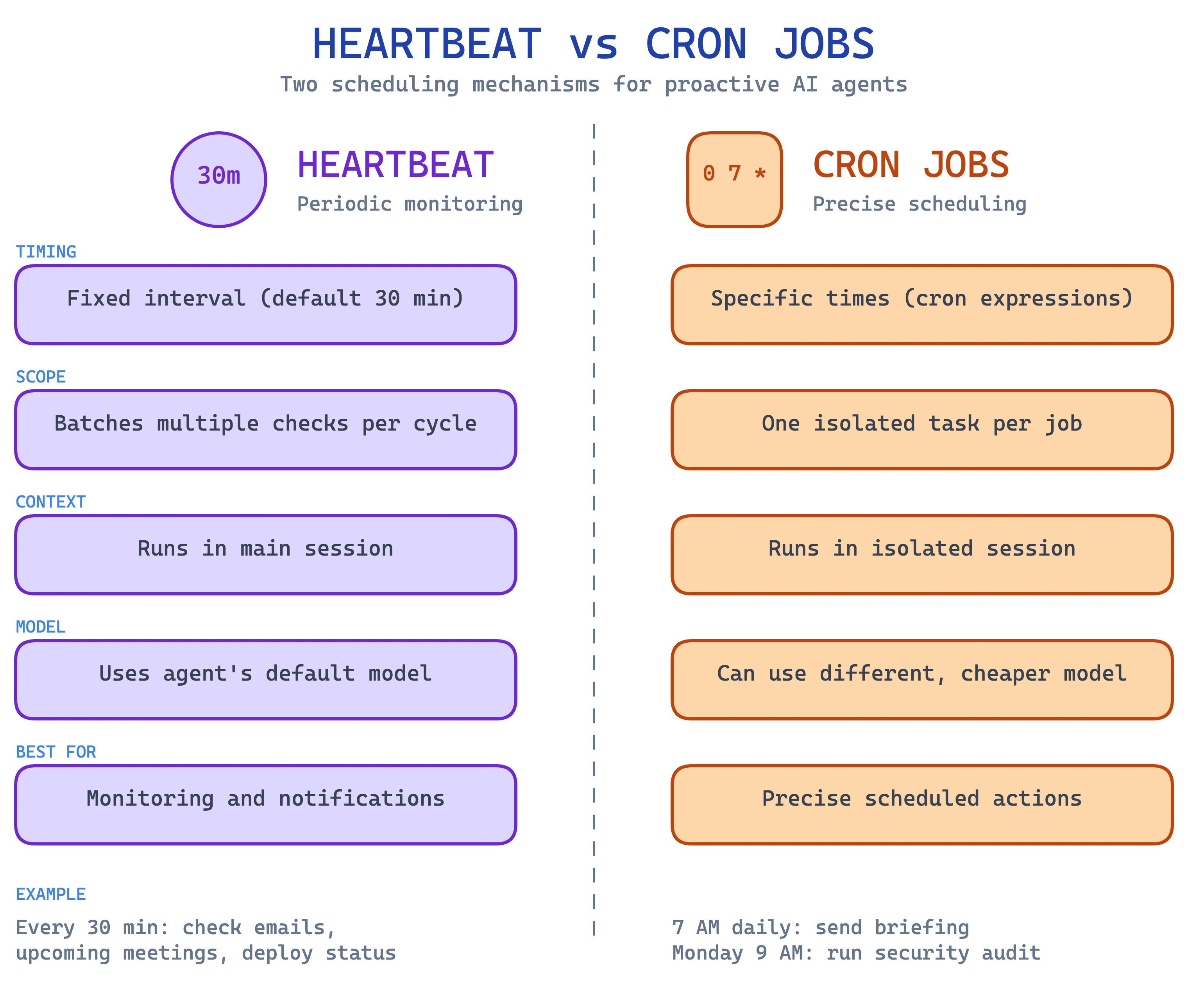
Cron jobs support one-shot reminders too. Need a reminder in 20 minutes? Use the --at "20m" flag. OpenClaw also automatically staggers top-of-hour jobs across a 0 to 5 minute window to prevent load spikes.
The Context Engine: Managing What the AI Sees
Every AI model has a limit on how much it can see at once. This is called the context window, measured in tokens. For practical purposes, one token is roughly one short word.
Claude Opus 4.6, for example, has a maximum context window of 1 million tokens. To put that in perspective, the Christian Bible is roughly 1 million tokens in length. So the model can see a conversation as long as an entire Bible at once.
When conversations get too long, the context engine compresses older parts by summarizing them so that key information survives even as details get trimmed.
The Hidden Cost of Context
Here is a critical detail that affects your costs. Every message you send, OpenClaw re-injects all of your markdown core files (agents.md, soul.md, tools.md, identity.md, user.md, heartbeat.md, and memory.md) as a prompt along with your message before responding.
If all of these files add up to 10,000 tokens, then every single message you send automatically incurs 10,000 tokens of overhead. This is a core reason why using an OAuth subscription with capped costs is generally recommended over pay-per-use API keys.
The context engine supports custom implementations via plugins if you need more sophisticated management. You can inspect your current context usage with commands like /status, /context list, and /usage tokens.
Multi-Agent: Your AI Team
OpenClaw supports running multiple agents inside a single gateway engine. Each agent has their own workspace, memory, name, and even personality.
Think of it like an office building. The gateway is the building itself. Each agent has their own office with their own filing cabinet. You might set up:
- A personal assistant agent for calendar and messages
- A developer agent for bug fixes and coding
- A sales agent for outreach emails
- A content agent for writing and scheduling posts
They all live in the same building but each has their own space and tools.
To set up multiple agents, just ask your main agent, and it will guide you through the process. The general principle is to identify different buckets of work you do and think of roles to fill, not specific tasks to assign. Start with two to three roles.
Sub-Agents: Delegation
When your agent needs help with something, it can spin up a sub-agent. Think of it like handing a task to an intern. Your agent gives them just enough context, the sub-agent works on it independently, and comes back with an answer. Meanwhile, your main agent keeps working and you can talk to it in parallel.
Routing
OpenClaw uses deterministic routing to direct messages to the right agent:
- Exact DM/group/channel match
- Thread inheritance from parent
- Guild and role matching (Discord)
- Team matching (Slack)
- Account match
- Channel-level match
- Fallback to default agent
This means you can route your personal WhatsApp to a "home" agent and business WhatsApp to a "work" agent. Or route Telegram to a powerful model for complex tasks and WhatsApp to a cheaper, faster model for quick replies.
Skills: Teaching Your Agent New Tricks
Out of the box, OpenClaw is a generalist. It can do many things reasonably well. But for specific tasks unique to your use case, it can be exceptional if you give it a playbook. Skills are exactly that.
A skill is a pre-written playbook that teaches the agent how to do something specific. Each one is defined by a SKILL.md file that includes prompts, resources, and references. Each agent can have its own set of skills.
There are three types of skills:
| Type | Description |
|---|---|
| Bundled | Ships with OpenClaw out of the box |
| Managed | Installed from ClawHub (the community marketplace) |
| Workspace | Custom skills you create locally |
Over 65% of active skills now wrap MCP servers, and there are 3,200+ pre-configured skills available with over 100 preconfigured AgentSkills for common operations.
ClawHub: The Skill Marketplace
ClawHub is OpenClaw's official skill registry, like npm for AI agents. It currently has over 3,200 skills available. It uses vector-powered search with embeddings rather than simple keyword matching, and community signals like stars and downloads influence ranking.
MCP Servers: Universal Power Adapters
Your business does not live on just your laptop. It is spread across Google Workspace, Notion, Figma, and dozens of other tools. MCP, which stands for Model Context Protocol, provides universal power adapters for your agent.
Each MCP server plugs your OpenClaw into a different external service. Connect one for Google Calendar and the agent can read and create events. Connect one for GitHub and it can manage your repositories. The agent reaches into all of these tools from your conversation.
The MCP standard was donated to the Agentic AI Foundation (Linux Foundation), co-founded by Anthropic, Block, and OpenAI. This means it is an industry-backed open standard, not a proprietary lock-in.
Plugins: Code-Level Extensions
Skills are playbooks written in plain English. Plugins go one level deeper. They are actual code-level extensions, usually written in TypeScript or JavaScript, that hook directly into the gateway's internals.
Because they run inside the gateway process itself, plugins can do things that skills simply cannot:
- Add entirely new messaging channels
- Register custom tools
- Swap out the context engine
- Modify how the gateway processes messages
In fact, every channel you connect (Telegram, WhatsApp, Discord) is actually a plugin under the hood. When someone builds support for a new platform, they are writing a plugin.
Since plugins deal with OpenClaw's code directly, this is a more advanced feature. Check with your agent before installing one, and only use plugins from trusted sources.
Nodes: Connecting Other Devices
Right now, your agent likely lives on one machine. But what if you wanted it to reach into other devices? Nodes are those connected devices.
If you set up a paired node to your smart glasses, OpenClaw could theoretically see what you see. If you set up your iPad as a node, it could push notifications straight to it instead of routing through messaging channels.
Since this technology is very new, there are only a few experiments right now. One example is VisionClaw, which connects OpenClaw to smart glasses. But as the platform matures, expect node support to become a major feature.
Nodes declare what they are upon connection, and the system routes requests accordingly. They execute locally even when the gateway is remote.
Security and Permissions
OpenClaw is powerful. It has its own computer and can connect to your business tools. The flip side of that power is that security stakes are high.
Key Security Controls
DM Access Policies:
- DM pairing (default): Unknown senders receive pairing codes and the bot ignores messages until approved
- Open mode: Requires explicit opt-in, not recommended for most setups
Shell Execution Modes:
deny: Block all shell execution entirelyallowlist(default): Commands require explicit approvalfull: Unrestricted execution, use with extreme caution
Tool Policies:
- Per-agent allow/deny lists that override global settings
- Limit high-risk tools (exec, browser, web_fetch) to trusted agents only
Sandboxing:
- Opt-in Docker-based sandbox mode
- Tools flagged as
elevatedcan escape the sandbox when needed - Sandbox does not bypass tool policy, it just controls the execution environment
Practical Security Tips
- Set up a cron job for periodic security audits by asking your agent
- Edit
openclaw.jsonto explicitly allow or deny specific tools - If you do not want your agent browsing the web, deny the browser feature
- Run
openclaw security auditto inspect your configuration - Run
openclaw doctorto surface risky DM policies
Cost Breakdown: What Does OpenClaw Actually Cost?
OpenClaw itself is completely free under the MIT license. Your costs depend entirely on which AI model you use and how you authenticate.
Estimated Monthly Costs by Model
| Model | Light Use | Moderate | Heavy |
|---|---|---|---|
| Claude Opus | $80-150 | $200-400 | $500-750+ |
| Claude Sonnet | $15-30 | $40-80 | $100-200 |
| GPT-4o | $12-25 | $30-60 | $80-150 |
| DeepSeek/Haiku | $5-15 | $5-15 | Under $30 |
| Local via Ollama | $0 | $0 | $0 |
Cost Optimization Tips
- Keep heartbeat.md lean. Every item in that checklist costs tokens every 30 minutes.
- Use cheaper models for routine tasks. Assign Haiku or Sonnet to cron jobs that do not need frontier reasoning.
- Batch checks into heartbeat rather than creating separate cron jobs for each one.
- Use Ollama for local models if you have capable hardware and the task does not need a frontier model.
- Keep your core markdown files concise. Remember, all of them get injected into every single message turn.
Model Agnostic: No Lock-In
OpenClaw works with virtually any LLM provider. Think of it as a cockpit that can switch engines mid-flight.
| Provider | Models | Notes |
|---|---|---|
| Anthropic | Claude Opus, Sonnet, Haiku | Most recommended for agent work |
| OpenAI | GPT-4o, GPT-5, Codex | OAuth subscription available |
| Gemini | Cloud provider | |
| DeepSeek | DeepSeek models | Budget option |
| Ollama | Any local model | Auto-detected, zero API cost |
| vLLM | Self-hosted | OpenAI-compatible endpoint |
Different models reason differently. Claude might handle complex coding better while a local open-source model handles simple classification just fine for a fraction of the cost. You can pick the default model per agent and even per cron job.
You are never locked into one provider.
Putting It All Together
Here is how all of these concepts connect:
- You install OpenClaw on a dedicated machine (or VPS)
- The Gateway starts up as the always-on engine
- Chat Channels connect your messaging apps to the gateway
- The Workspace loads your core markdown files into the agent's brain
- Soul.md, Agents.md, User.md, Tools.md define who the agent is, how it works, who it serves, and what it knows
- The Agentic Loop drives all actions: receive task, plan steps, use tools, evaluate results, repeat
- Memory ensures nothing important gets forgotten between sessions
- Heartbeat keeps the agent proactively checking on things you care about
- Cron Jobs handle tasks that need to happen at specific times
- Skills and MCP Servers extend the agent's capabilities to new tools and services
- Multi-Agent lets you build an entire team of specialized digital workers
- The Context Engine manages what the AI can see at any moment
- Security controls keep everything locked down
The beauty of OpenClaw is that every single piece of this system is a text file you can read, understand, and edit. No hidden databases. No proprietary formats. Just plain English markdown that happens to power an AI agent.
Getting Started: Your First 30 Minutes
If you want to try OpenClaw today, here is a practical path:
- Pick a machine. An old laptop, a Mac Mini, or a $5/month VPS.
- Install OpenClaw using the one-liner from openclaw.ai.
- Connect an AI model using OpenAI OAuth if you are on a budget, or an Anthropic API key if you want the best reasoning.
- Set up one chat channel. Telegram is the fastest to configure.
- Give it a simple task. Ask it to check your email or summarize a document.
- Review the workspace files. Open soul.md and agents.md. Read them. Edit them. Make them yours.
- Add one heartbeat item. Something small, like "remind me of meetings in the next hour."
- Explore skills. Ask your agent what skills it has and browse ClawHub for ones relevant to your work.
From there, you iterate. The agent gets better as you refine its files. The more you use it, the more it remembers. The more you trust it with, the more it can do.
Welcome to the age of AI employees.